> ## Documentation Index
> Fetch the complete documentation index at: https://openmetadata-docs-release-watchers.mintlify.site/llms.txt
> Use this file to discover all available pages before exploring further.
# OpenMetadata Chrome Extension | Official Documentation
> Install the browser extension to explore metadata and documentation directly while navigating your data tools.
# OpenMetadata Chrome Extension
The OpenMetadata Chrome Extension brings your metadata into any tool you're working in. Instead of switching tabs to look something up in OpenMetadata, you can view an asset's details directly from your browser.
## Installation
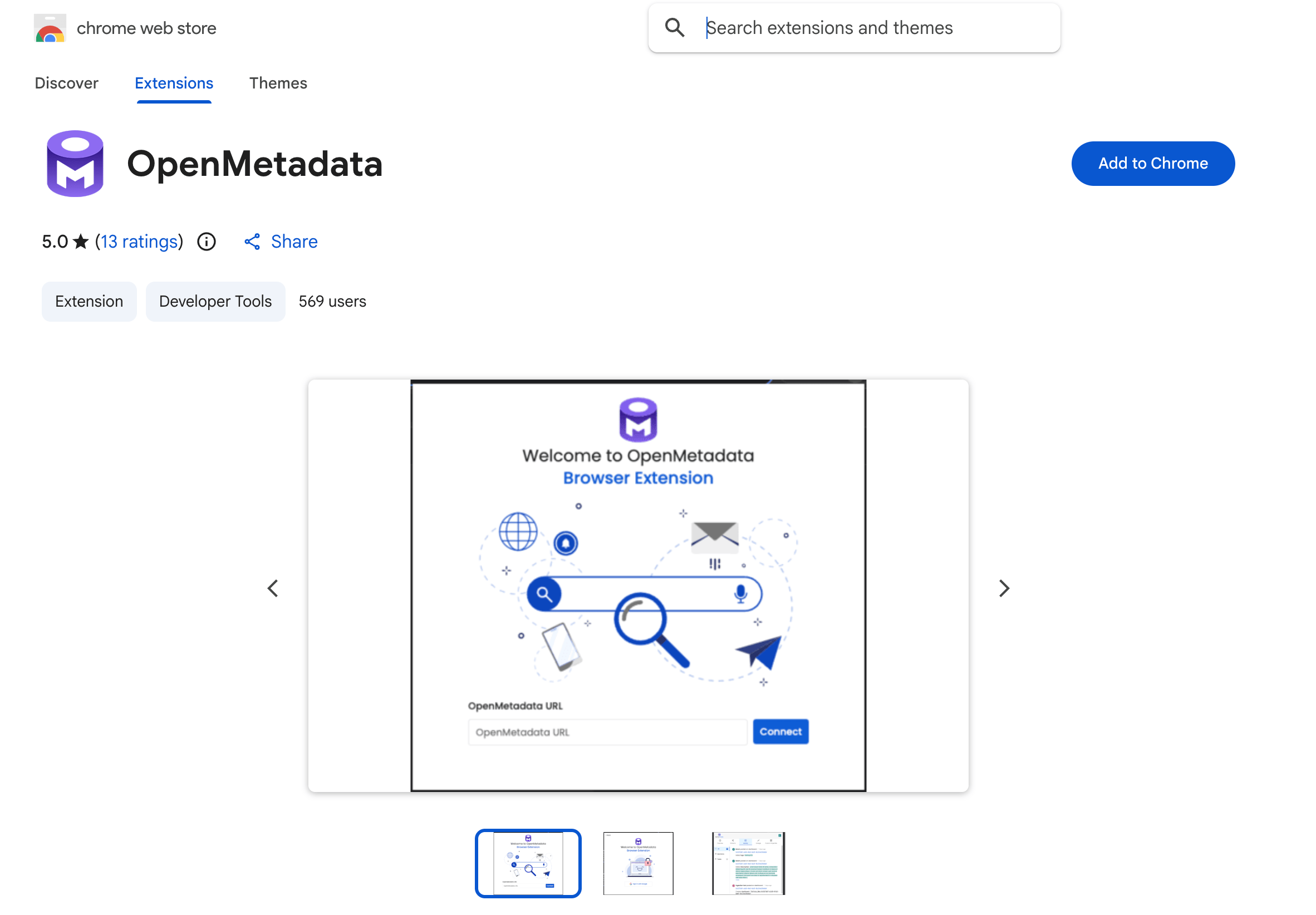
1. **Install the Extension**: Add the [OpenMetadata Chrome Extension](https://chromewebstore.google.com/detail/openmetadata/pakbbdhbbiclnceabdmnghamabjloofc) from the Chrome Web Store.
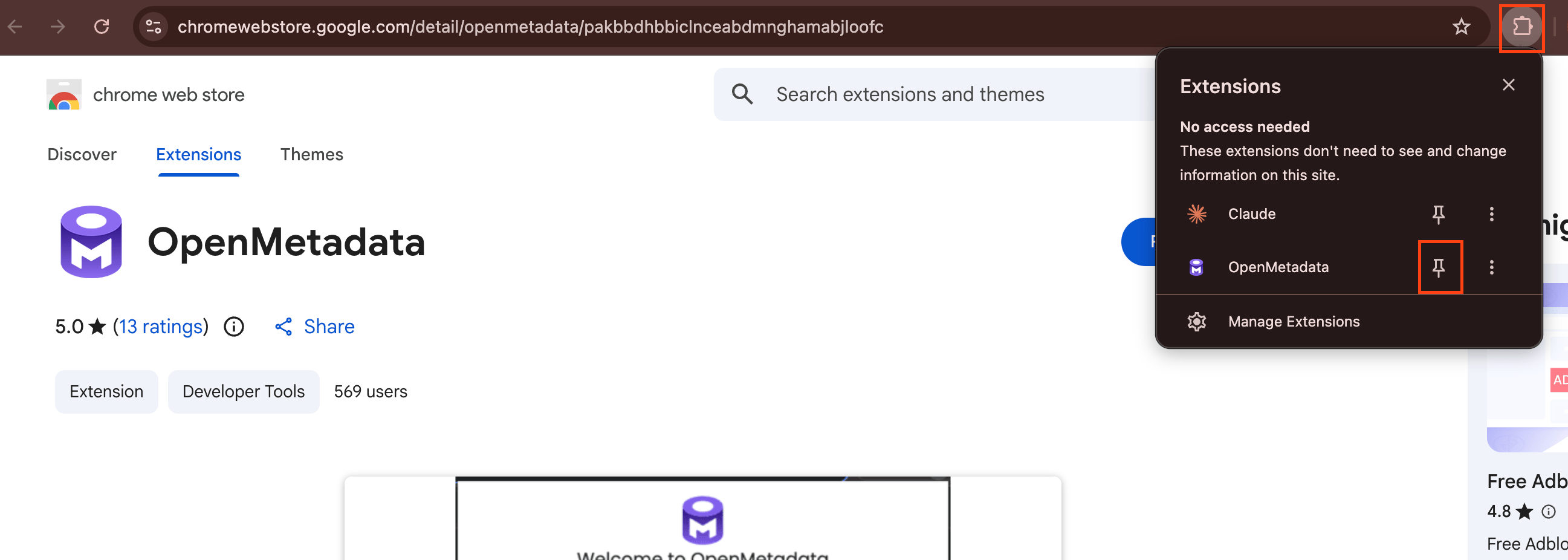
 2. **Pin to Chrome Browser**: Pin the extension to your Chrome toolbar so it's always one click away.
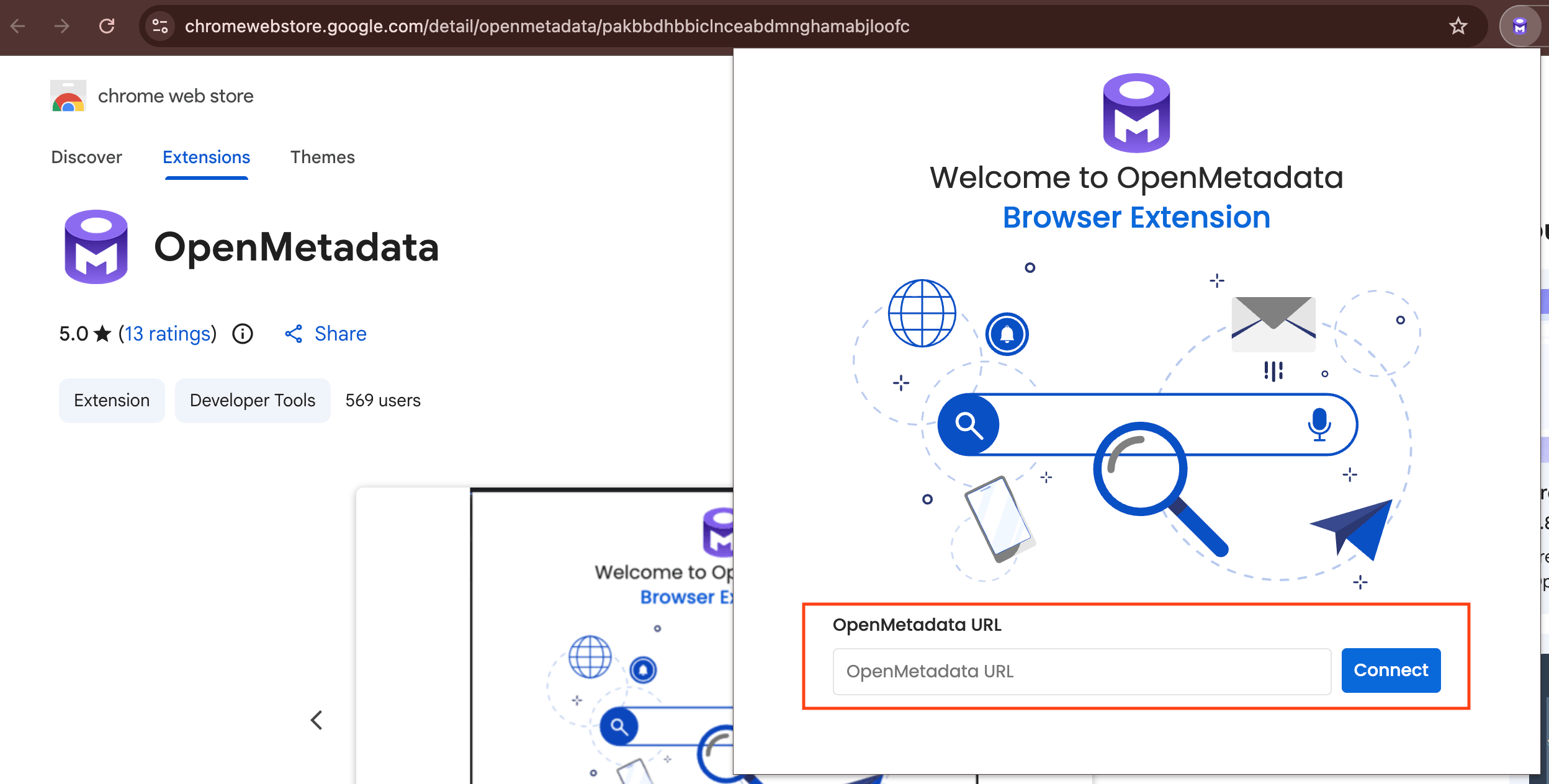
 3. **Connect to your Instance**: Click the **OpenMetadata** icon, enter the base URL of your OpenMetadata instance, and sign in.
 ## What You Can Do
After you're signed in, the extension shows your **Activity Feeds** from the **My Data** page.
While working in a third-party tool that's integrated with OpenMetadata, click the extension to view the metadata for whatever you're looking at, including:
* Ownership
* Description
* Tags and glossary terms
* Schema
* Lineage
* Custom properties and more
## Single Sign-On (SSO) Configuration
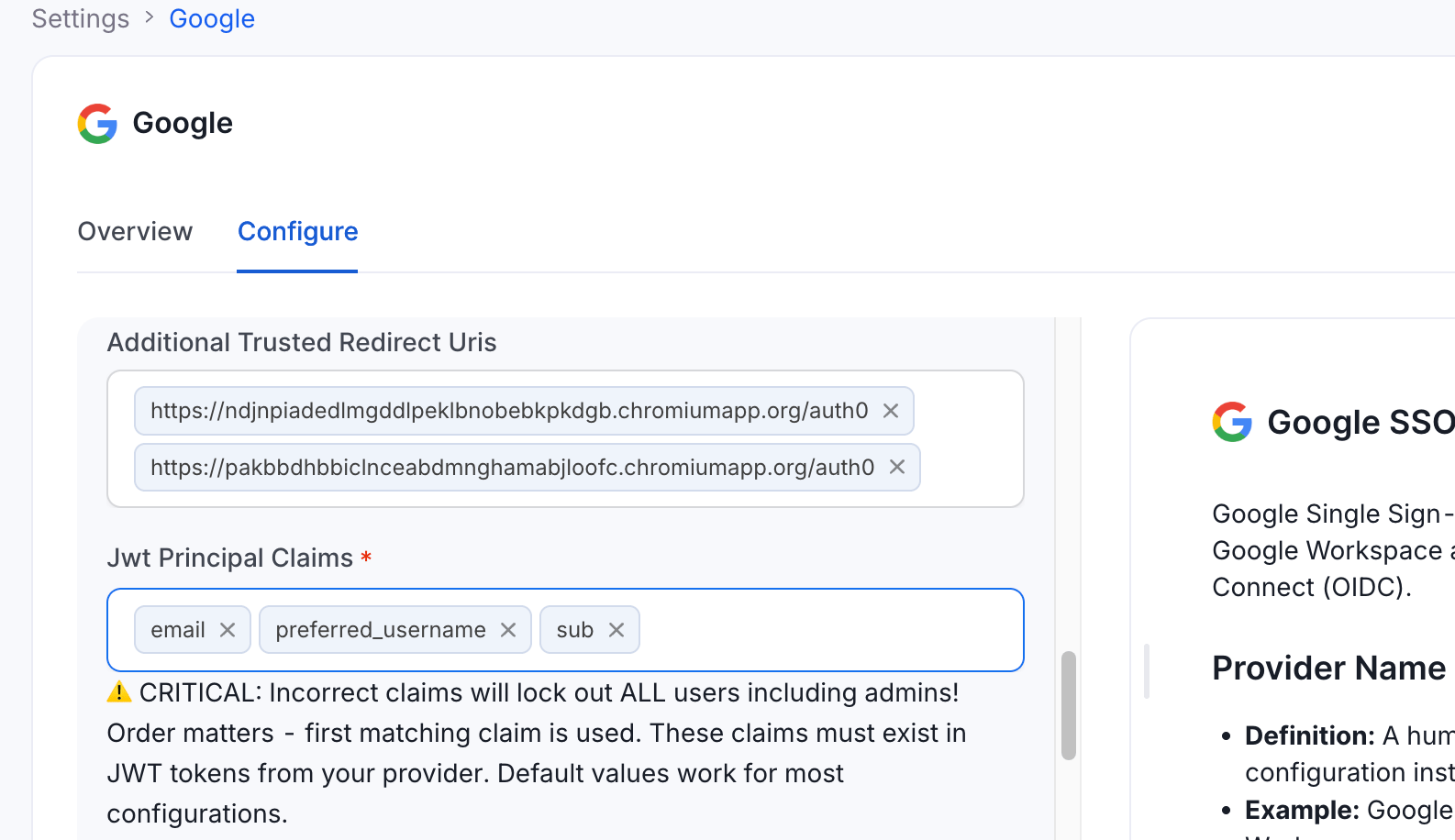
If your OpenMetadata instance uses Single Sign-On (SSO), the extension's redirect URI must be registered as a **trusted redirect URI**. OpenMetadata validates login redirects against an exact-match allowlist, so any URI that isn't registered is rejected with a `400 Bad Request` and the extension can't complete sign-in.
The redirect URI follows this pattern, where `` is the ID of your installed extension:
`https://.chromiumapp.org/auth0`
For the OpenMetadata Chrome Extension published on the Chrome Web Store, this is:
`https://pakbbdhbbiclnceabdmnghamabjloofc.chromiumapp.org/auth0`
Register the redirect URI in one of two ways.
### Option 1: Configure in the UI
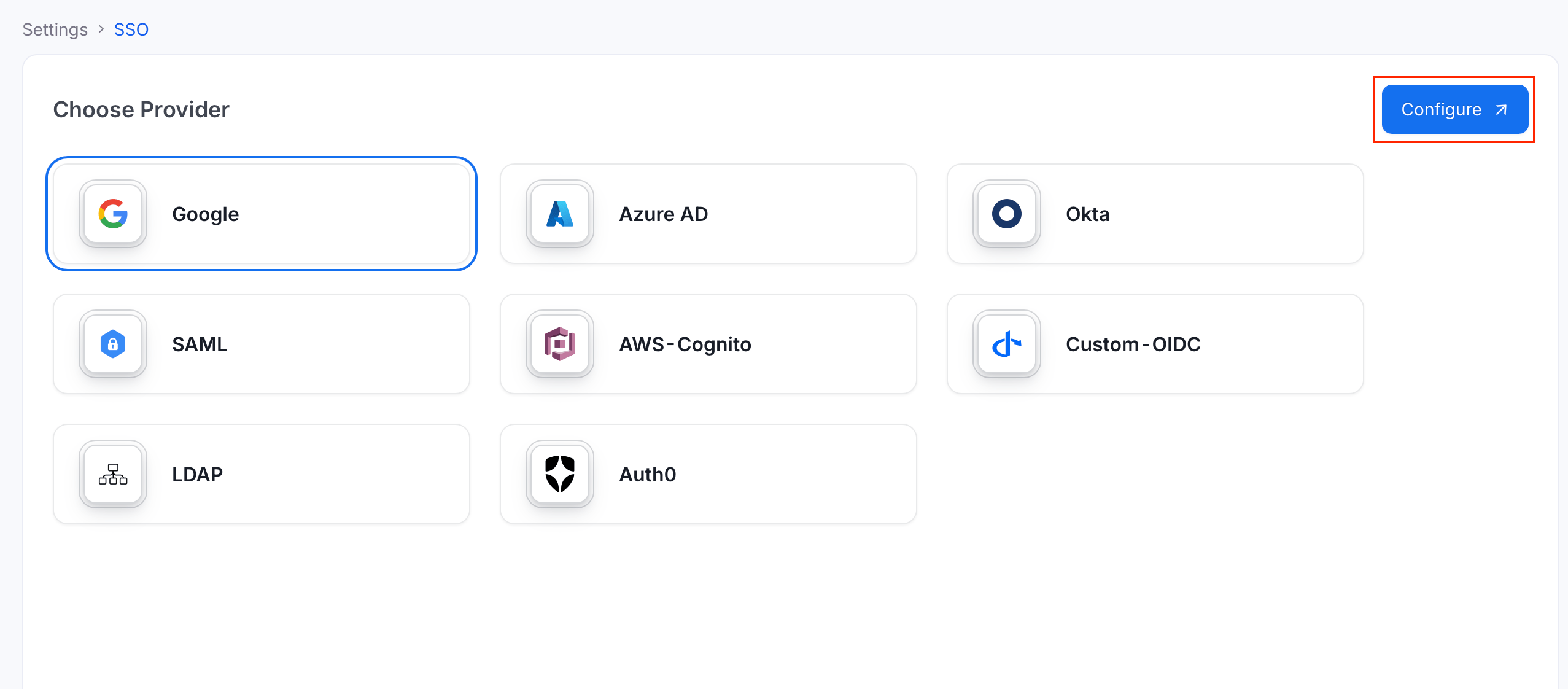
1. Go to **Settings** > **SSO**.
## What You Can Do
After you're signed in, the extension shows your **Activity Feeds** from the **My Data** page.
While working in a third-party tool that's integrated with OpenMetadata, click the extension to view the metadata for whatever you're looking at, including:
* Ownership
* Description
* Tags and glossary terms
* Schema
* Lineage
* Custom properties and more
## Single Sign-On (SSO) Configuration
If your OpenMetadata instance uses Single Sign-On (SSO), the extension's redirect URI must be registered as a **trusted redirect URI**. OpenMetadata validates login redirects against an exact-match allowlist, so any URI that isn't registered is rejected with a `400 Bad Request` and the extension can't complete sign-in.
The redirect URI follows this pattern, where `` is the ID of your installed extension:
`https://.chromiumapp.org/auth0`
For the OpenMetadata Chrome Extension published on the Chrome Web Store, this is:
`https://pakbbdhbbiclnceabdmnghamabjloofc.chromiumapp.org/auth0`
Register the redirect URI in one of two ways.
### Option 1: Configure in the UI
1. Go to **Settings** > **SSO**.
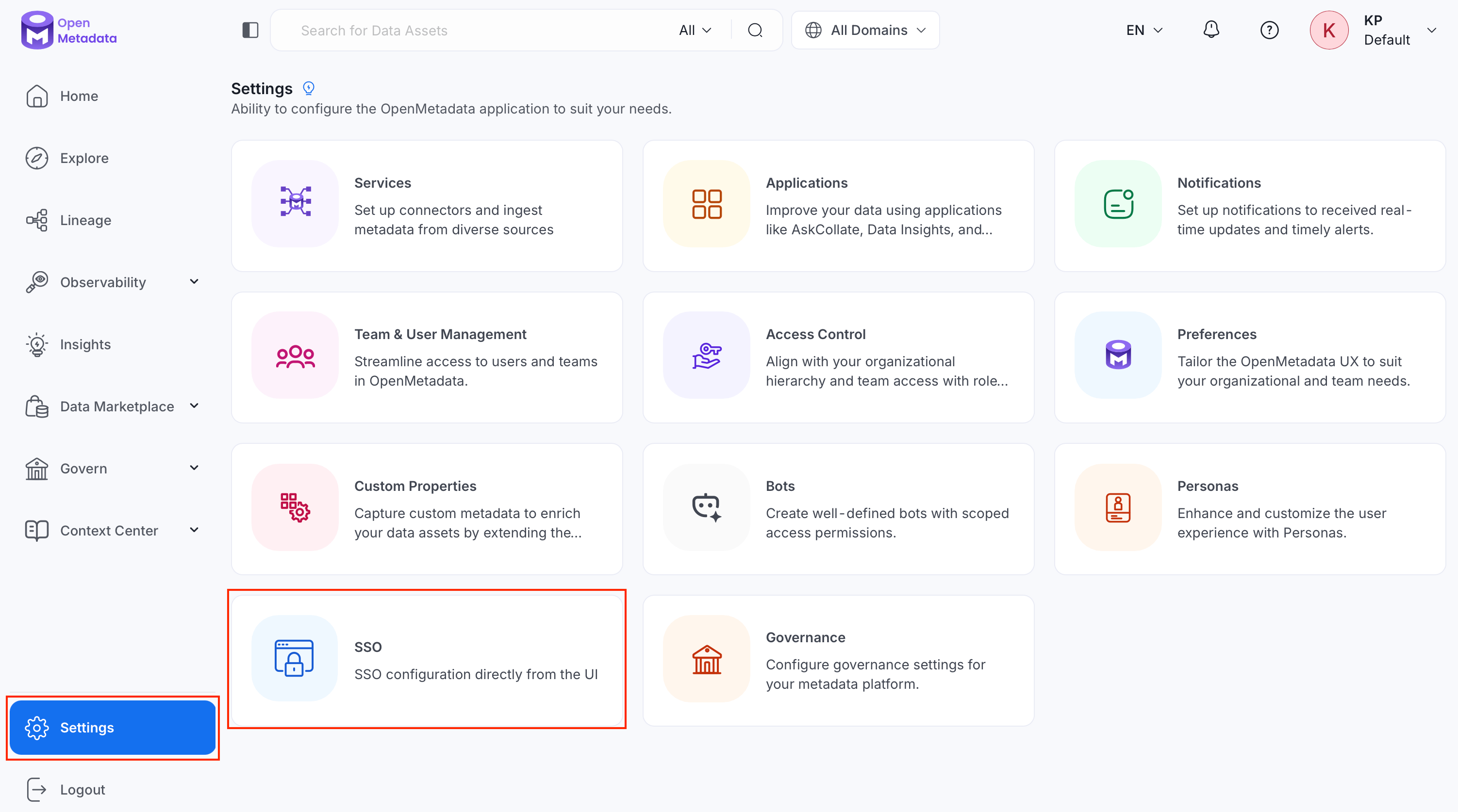 2. Select your provider and click **Configure**.
 3. In the **Additional Trusted Redirect Uris** field, add the extension redirect URI.
 ### Option 2: Configure via Environment Variable
Set the `AUTHENTICATION_ADDITIONAL_TRUSTED_REDIRECT_URIS` environment variable to a JSON array of redirect URIs:
```bash theme={null}
export AUTHENTICATION_ADDITIONAL_TRUSTED_REDIRECT_URIS='["https://.chromiumapp.org/auth0"]'
```
This maps to `authenticationConfiguration.additionalTrustedRedirectUris` in the server configuration. It applies to both OpenID Connect (OIDC) and SAML login flows, and no database migration is required.
For more information about SSO and redirect configuration, see [Enable Security](/v2.0.x/deployment/security).
Matching is **exact**—scheme, host, port, path, and query must all match. Wildcard hosts (for example, `*.chromiumapp.org`) are not supported by design, because that would let any browser extension receive an OpenMetadata token. The list defaults to empty (`[]`), so existing deployments are unchanged until you opt in.
### Option 2: Configure via Environment Variable
Set the `AUTHENTICATION_ADDITIONAL_TRUSTED_REDIRECT_URIS` environment variable to a JSON array of redirect URIs:
```bash theme={null}
export AUTHENTICATION_ADDITIONAL_TRUSTED_REDIRECT_URIS='["https://.chromiumapp.org/auth0"]'
```
This maps to `authenticationConfiguration.additionalTrustedRedirectUris` in the server configuration. It applies to both OpenID Connect (OIDC) and SAML login flows, and no database migration is required.
For more information about SSO and redirect configuration, see [Enable Security](/v2.0.x/deployment/security).
Matching is **exact**—scheme, host, port, path, and query must all match. Wildcard hosts (for example, `*.chromiumapp.org`) are not supported by design, because that would let any browser extension receive an OpenMetadata token. The list defaults to empty (`[]`), so existing deployments are unchanged until you opt in.